
This article applies to connecting to the FTP of Webhosting, WMS and WEDOS Disk. If you need to find the FTP account login details or change the password, follow the guide FTP – Login.
In this article you will learn:
- Which FTP clients to use
- How to solve FTP connection problems
- How to solve file management errors
- Frequently Asked Questions
Recommended FTP clients
To connect to FTP, we recommend using these clients:
- Browser client WebFTP ⧉ is suitable for transferring relatively small files (roughly up to tens of MB). It also includes a built-in text editor for quick code edits. It does not support connecting to the SFTP of the WMS service.
- Client FileZilla ⧉ (not a VEDOS product) is installed on your computer. We recommend it for transferring larger files.
If you run into a problem with an FTP client, first try connecting via WebFTP ⧉as well. If WebFTP works with the given login details, the error is very likely on the client side.
FTP connection problems
Before you start troubleshooting FTP, check that your website works. If the website shows the error message Webhosting is disabled, FTP will not work either.
The most common FTP connection problems include:
- Incorrect login details
- FTP account restrictions
- Non-existent default directory of a secondary account
- Connection restrictions
Login details

Enter the login details in this form:
| Webhosting/WMS | Disk | |
|---|---|---|
| FTP server | XXXXXX.wXX.wedos.net, where X is a digit | XXXXXX.sXX.wedos.net, where X is a digit |
| Username | wXXXXXX, where X is a digit (main account), or wXXXXXX_name, where name is the existing name of the secondary FTP account. | sXXXXXX, where X is a digit (main account), or sXXXXXX_name, where name is the existing name of the secondary FTP account. |
| Password | Generated and saved in the Customer Administration at least 15 minutes ago. | Generated and saved in the Customer Administration at least 15 minutes ago. |
You can find the FTP account details in the email about its creation, or in the Customer Administration by following the guide FTP – Login. If you do not know the password, change it by following the same guide.
FTP account restrictions
If the login details are correct, use these steps to check whether the account is blocked in the Customer Administration:
- Log in to the Customer Administration ⧉.
- In the top menu, select Hosting services Webhosting, or WMS, or Server services Disk.
- In the overview, select the service whose FTP availability you want to verify.
Show service detail:
In the table (FTP) accounts ) verify that the account has no block icon (red B). If the account is blocked, unblock it by following the guide FTP – Accounts.
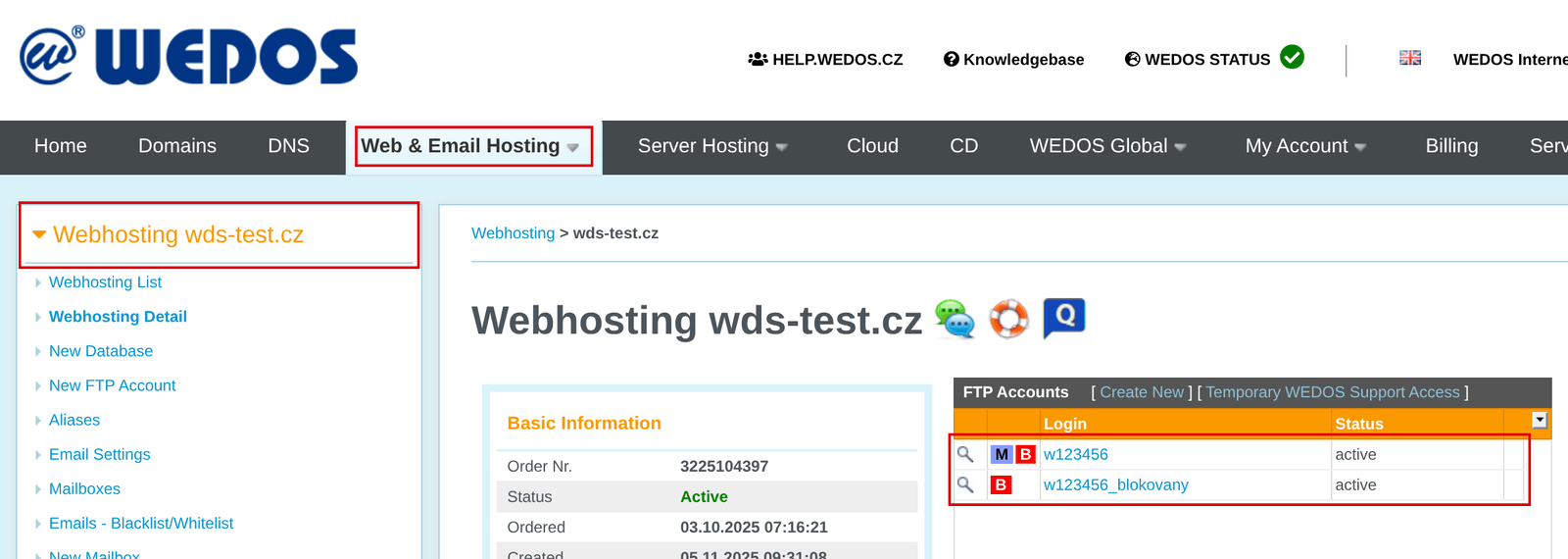
For WEDOS Disk, click the magnifier icon next to the account and verify that the following is checked (enabled): FTP protocol.
Default directory
You can log in to a secondary FTP account (wXXXXXX_name) only if the FTP contains a directory (path) that this account has set as its default.
The default directory of an account cannot be changed. If it does not exist, create it using the main FTP account, or create a new FTP account in the administration with an existing directory.

Connection restrictions
If FTP still refuses the connection even for the main account, check:
- whether the service is restricted or blocked by antivirus software;
- the settings of your firewall and router, to see whether they block port 21 (22 for WMS);
- whether the connection works from another device on a different network (for example, mobile data).
If none of the above helps, activate temporary FTP access for Support by following the guide Webhosting – Temporary FTP Access for Support. Then contact us via the form ⧉. Include the Webhosting name, the FTP server address and the username.
File management errors
If you notice errors when working with files on Webhosting, first fix the file permissions following this guide. If the errors persist and you are using your own FTP client, first try performing the same operation in the WebFTP ⧉.
Uploading files
Slow file uploads are usually related to the size or number of the files. Upload large files or folders containing many files using the the FileZilla client. If uploads often drop out, upload the files in smaller batches.
Webhostings with the LowCost plan and WMS hostings are limited by storage space for files, and Disks are additionally limited by the number of files. You can find information about the number and volume of files on Webhosting and Disk in the service detail in the Customer Administration ⧉. For WMS, we recommend running a performance diagnostic following this guide.
Show service detail:
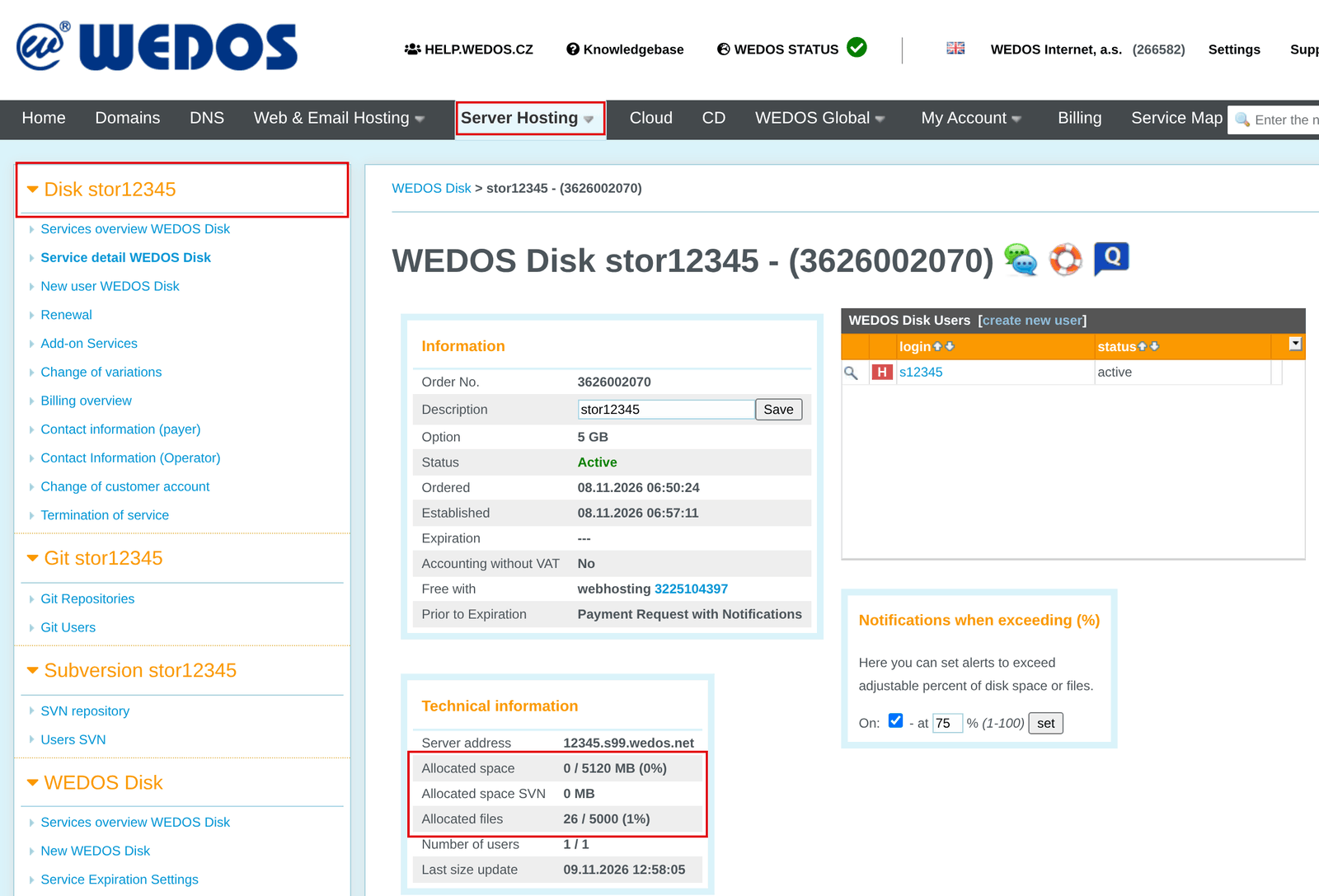
If the space or the file limit is exhausted, you will not be able to upload more files via FTP until you free up some space.
Downloading files
Similar to uploading files, slow downloads are usually related to the size or number of the files. Download large files or folders containing many files using the the FileZilla client. If downloads often drop out, download the files in smaller batches.
Deleting files
Before deleting anything on FTP (especially on Webhosting), make sure you have backed up.
If a file cannot be deleted, first make sure it really exists on the FTP. Refresh the file listing in the client and verify that nobody else is working with the file or directory.
If the file exists and attempts to delete it end with an error, activate temporary FTP access for Support by following the guide Webhosting – Temporary FTP Access for Support. Then contact us via the form ⧉. Include the Webhosting name and a detailed description of the error, or a screenshot ⧉ with the error message.
Frequently Asked Questions
Nothing in the guide helped me. What should I do now?
Activate temporary FTP access for Support by following the guide Webhosting – Temporary FTP Access for Support. Then contact us via the form ⧉. Include the Webhosting name and a detailed description of the error, or a screenshot ⧉ with the error message.
I want to download a backup from an expired webhosting. How do I get FTP access?
If the webhosting expired no more than 5 days ago, ask Support via the form ⧉ to activate it and delay shutting down the hosting so that you can download the backup. Include the webhosting name in your request.
The decision to turn Webhosting on is entirely at the discretion of Support and cannot be claimed in any way.