
This article covers the basic use of the WebFTP client. For a guide to managing FTP accounts in the Customer Administration, see the article Webhosting – FTP Accounts. For a general guide to managing web hosting files, see the article Webhosting – File Management.
In this article you will learn:
- When to use this guide
- Basic information about the WebFTP client
- How to log in to FTP
- How to browse between directories
- How to work with files and folders
- Common problems
- Frequently Asked Questions
When to use this guide
- You need to upload the first website files to a new Webhosting: Uploading.
- Files were left on the Webhosting after a failed installation and you need to delete them: Changing selected items.
- You cannot log in to the WordPress administration because of a faulty plugin: Frequently Asked Questions.
- After renaming a domain, the default “webhosting is active” page is displayed and your old website is nowhere to be found: Frequently Asked Questions.
- Copying or zipping a larger folder gets stuck: Zipping a larger folder gets stuck.
- WebFTP will not let you into a WMS Webhosting: Non-working connection to WMS FTPS.
Basic information about WebFTP
You can find the WebFTP web FTP client at https://webftp.wedos.net/ ⧉. It provides access to files of:
- Webhosting service
- WEDOS Disk service
The WebFTP client currently does not support access to web hosting on the WMS service. Use a different FTP client, for example FileZilla.
WebFTP can only access WEDOS services that support this type of access.
The advantage of WebFTP is access through a browser without having to install anything. The disadvantages include limited transfer speed and a limited set of supported file actions.
As an alternative to WebFTP, we recommend the desktop FTP client FileZilla.
Logging in
After opening the WebFTP ⧉ interface, log in. You will need the following details:
- FTP server name
- Username
- Password
If you do not know these details, obtain them by following the guide FTP – Login.
Enter them in the form on the login screen and click the Login.

To log out, click the red button (icon) in the top right of the client.
Browsing between directories
After you log in successfully, the client lists the contents of the directory you have entered.
Only the main FTP account has access to the root directory of the service. For more information, see the article Webhosting – FTP Accounts.
You move between folders by clicking the folder name.
The folder named .. Up takes you to the directory that contains the folder you are currently browsing.
If you need to move up several directories quickly, use the breadcrumb navigation Directory Tree. Link root leads to the root directory (the default one for your FTP Account).

File management
With WebFTP you can perform these actions on files and directories:
Creating directories and files
Create a new file or directory by clicking the corresponding button in the top left of the file overview.

- For a new directory the system prompts you to enter and confirm a name. It creates the new directories in the current location and returns you there after they are created.
- For a new file the system opens a code editor. Enter the name of the new file (including the extension) and type or paste the code into the text box. After you save, the system creates the file in the current location and returns you there when you leave the editor.
Uploading
To open the interface for uploading a new file, click the Upload button in the top left of the file overview.

In the upload interface you can:
- In the Upload to directory text box, set the folder to which you want to upload the file.
- In the left part, Files select the files (not folders) that you want to upload.
- In the right part, Archives (zip, tar, tgz, gz), select the zip, tar, tgz or gz files that you want to upload and extract at the same time.
After you finish selecting files, click the green confirmation button in this interface.

If a file with the given name already exists in the directory, WebFTP overwrites it without any further warning!
If you want to upload to the website:
- An archive without extracting it, upload it as a file in the left part of the form.
- A folder containing files, pack it into a zip, tar, tgz or gz archive and upload it in the right part of the form.
Viewing and editing
You can view individual files directly in WebFTP and edit them if needed. Viewing works for most code files and images; you can only edit text files.

- Viewing a file displays the code text including line numbers, or shows the image at its original size.
- Editing a file tries to open the file in a text editor.
Click a file name to download it to your connected device.
Changing selected items
In the top right corner of the file overview you will find tools for bulk management of files and folders:
- Copy. Copies the selected files to another directory or to another FTP server.
- Move. Moves the selected files to another directory or to another FTP server.
- Delete. Deletes the selected files after you confirm the list.
- Rename. Changes the names of the selected files.
- Chmod. Sets the permissions for reading, writing and executing files. If you do not know how these permissions work, do not change the settings.
- Download. Downloads the selected files. If you download a folder or more than one file, WebFTP packs the contents into a zip file before downloading.
- Zip. Packs the items into a zip archive, which it saves on the server or sends by email.
- Unzip. Extracts a zip archive into the selected directory.
- Size. Calculates and displays the total size of the selected files.
- Search. Searches folders and subfolders for files containing the entered expression.
First, use the checkboxes in the left part of the table to tick the files you want to manage. Click the link All in the column header to select all items.

Common problems
For guides to solving common problems with connecting to FTP, see the guide FTP – Troubleshooting.
Common problems with the WebFTP client include:
- Cannot connect to WMS web hosting
- Files are not copied to the set target directory
- Zipping a larger folder gets stuck
- After switching to the iPhone theme, you cannot switch back
Non-working connection to WMS FTPS
Problem: When you try to connect to FTPS on WMS web hosting through WebFTP, the system returns an error. The login details are correct, including port 22.
Cause: The WebFTP interface does not support connecting to WMS web hosting.
Solution: Use a desktop FTP client.
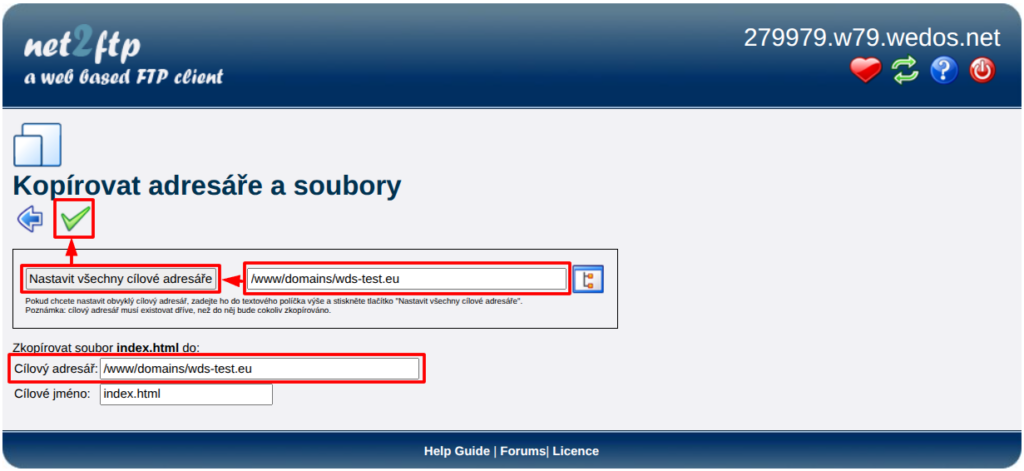
File copying does not work
Problem: When you try to copy multiple files and folders to a new location, the copy seems to complete, but the target folder is empty.
Cause: The target folder is not set correctly for the copied files themselves.
Solution: After selecting the target directory at the top of the page, Copy directories and files click the button Set All Target Directories. Make sure the target is correct for all directories.
Zipping a larger folder gets stuck
Problem: When zipping or copying a larger folder (for example, an entire website to another directory), WebFTP gets stuck at several tens of percent and does not move on.
Cause: WebFTP has limited transfer speed and supported actions, so it may not be able to handle large amounts of data.
Solution: Use a desktop FTP client. If that does not help, ask Support to copy the data for you via the contact form ⧉.
iPhone theme
Problem: I have the iPhone theme turned on and I cannot select any other.
Solution: Enter in the address bar: https://webftp.wedos.net/index.php?skin=blue. This resets the WebFTP skin to its default appearance.
Frequently Asked Questions
Where do I find the login details for FTP?
You can find the details in the service activation email or in the Customer Administration, following the guide FTP – Login.
Uploading or downloading from WebFTP is slow and sometimes fails completely. What should I do?
Use a desktop FTP client. We recommend FileZilla ⧉.
How do I set file permissions?
Incorrectly set file permissions can cause errors. Instead of editing them manually, we recommend using automatic file permission repair.
Which folder on the Webhosting do the website files belong in?
Into the folder www/domains/ and in it into the directory named after the domain, for example wds-test.cz.
After renaming a domain, the “webhosting is active” page is displayed. Where is my website?
The website files remained in the original domain’s directory in the folder www/domains/. Create a new directory named after the new domain in it and move the files there using the tool Move.
How do I disable a WordPress plugin when I cannot log in to the administration?
Log in to FTP, open the directory wp-content/plugins of your website and rename the plugin folder using the tool Rename, for example by adding an underscore at the beginning of the name. WordPress will stop loading the plugin.
How do I delete leftovers from a failed website installation?
Log in to FTP, tick the items in the relevant directory and click Delete. You can find details in the chapter Changing selected items.