
Aliases, i.e. additional domains operating on the web hosting, can be set up only for NoLimit and NoLimit Extra Webhostings. LowCost does not support aliases.
You can change the Webhosting plan by following the guide Services – Changing the Plan or Billing Period.
In this guide, you will learn:
- When to use this guide
- What aliases are for
- How to add or remove an alias for a Webhosting
- How to set up an alias for:
- Common problems
- Frequently Asked Questions
When to use this guide
- You want to run another domain or a second website on a web hosting you already have, without buying another web hosting. You can find the procedure in the chapters Webhosting Aliases and Adding and removing an alias.
- The domain should display different content on the web hosting than the main domain. See Multiple websites on one Webhosting.
- You want to use email on another domain or subdomain. See Email mailboxes for different domains.
- When you add an alias, the system reports that a separate web hosting exists for the domain, or that the domain is in a different customer account. See The domain cannot be added as an alias and Domain in a different customer account.
- You want to move a domain from one of your web hostings to another. See The domain cannot be added as an alias.
- You have LowCost web hosting and cannot add an alias. See Webhosting Aliases.
Webhosting Aliases
You can point another 3 domains as aliases to the space of each NoLimit and NoLimit Extra Webhosting. If you need to run more domains on the hosting, you can increase this number by purchasing the Unlimited Number of Aliases Add-on Service. Webhosting LowCost does not support aliases.
Using aliases, you can run several different websites on one Webhosting. These websites share:
- Webhosting performance: Individual websites on a Webhosting share the processes reserved for the whole Webhosting, which places higher demands on optimization.
- Mailboxes: Email space and individual mailboxes are shared between aliases. You can find more information in the chapter Email mailboxes for different domains.
Alternatively, you can use aliases for redirection with the HTTPS protocol. You can find more information in the chapter Redirection with HTTPS.
Adding and removing an alias
Before you add an alias to a Webhosting, make sure that:
- The (sub)domain being added is not the name of an existing alias, Webhosting, Mailhosting or WebSite service. If you already have such a service in your customer account, remove its alias or rename it by following the guide Webhosting – Renaming, Mailhosting – Renaming, or WebSite – Renaming.
- The domain being added is at least temporarily in the same customer account as the Webhosting to which you are adding the alias. If it is not, move it by following the guide Services – Transfer Between Accounts, or Domains – Transfer Between Accounts Using an Authorization Password. This restriction applies only to domains registered with VEDOS; domains registered elsewhere do not need to be moved. Alternatively, ask the customer in whose account the domain is located to grant you permission for it by following the guide Administration – Authorized User.
The system will not allow the alias to be added until these conditions are met.
Alias management interface
To access alias management, follow these steps:
- Log in to the Customer Administration ⧉.
- In the top menu, select Hosting services Webhosting.
- From the list of Webhostings, select the service to which you want to add the alias.
- In the left menu, select Aliases.
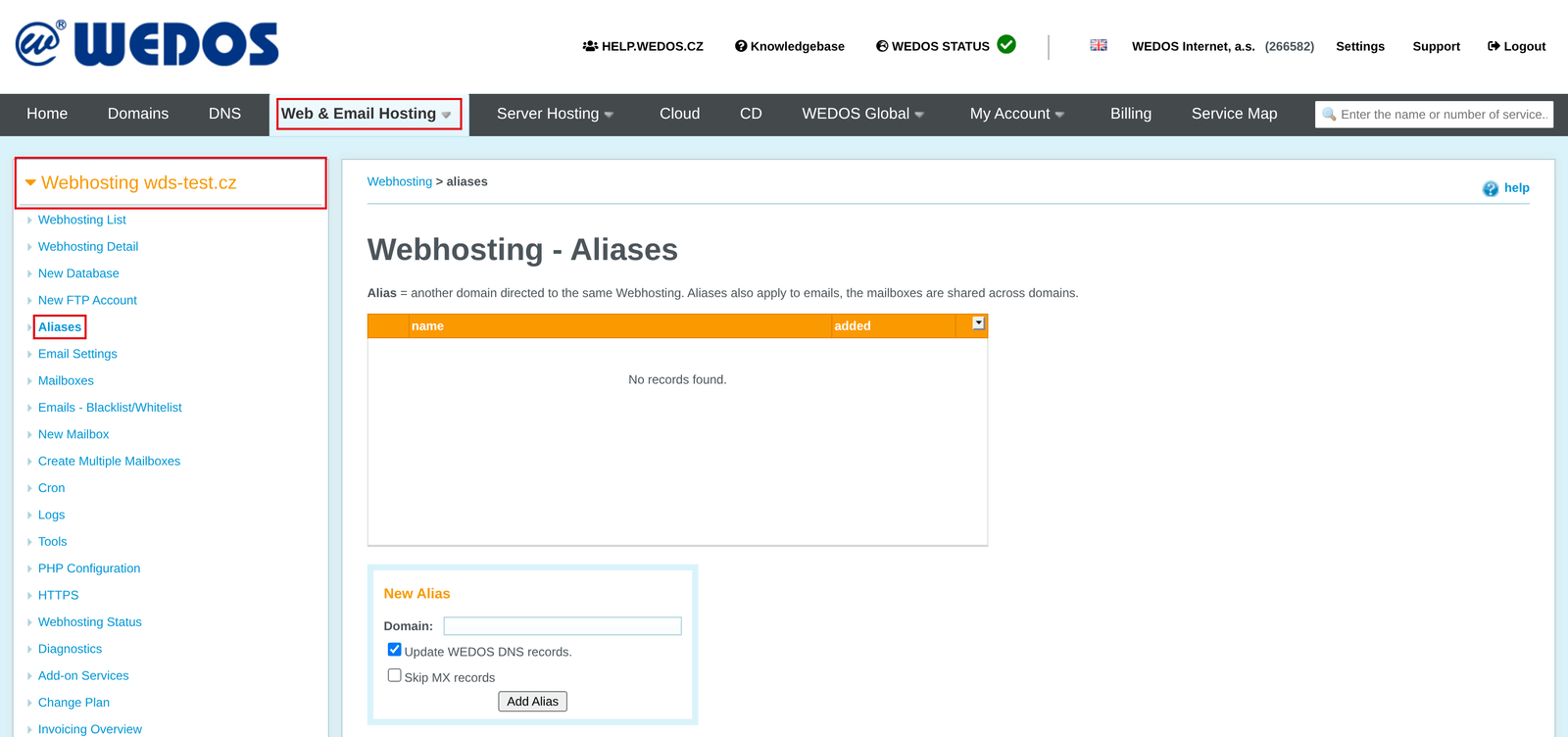
For the domain, we also recommend using WEDOS DNS servers. This lets you automate part of the following procedure.
Adding an alias
Changes in the system take effect within 30 minutes; DNS record changes within 1 hour.
Enter the alias domain in the format domain.tld. Avoid a name that contains the subdomain www.
You add an alias to a Webhosting by following these steps:
- Open the alias management interface by following the chapter Alias management interface.
- In the box New Alias enter the alias domain.
- Decide on automatic DNS setup and generation of the Let’s Encrypt certificate.
- Click the button Add Alias.

If you use WEDOS DNS servers, you can have the domain automatically pointed to the Webhosting with the alias. The option make changes on our DNS servers for the alias domain is selected automatically. The system will automatically change the A, AAAA records and MX for the given (sub)domain. DNS record changes take effect within 1 hour.
If the domain has already been pointed to the Webhosting earlier, you can automatically include the alias domain in the Let’s Encrypt certificate. If the domain has not been pointed beforehand, when this option is ticked the system waits 10 minutes for DNS to propagate and then tries to generate the certificate.
Removing an alias
To remove an alias, follow these steps:
- Open the alias management interface by following the chapter Alias management interface.
- In the alias overview, click the cross icon next to the name of the alias you want to remove.
- Confirm the alias deletion.

Alias setup
You can use an alias to run multiple websites and email on one Webhosting, or for redirection (with HTTPS).
Multiple websites on one Webhosting
By default, aliases display the contents of the folder www on the Webhosting FTP. On the alias domain and its subdomains you therefore see the same content as on the main domain (if you have its content in the folder www).
You can find a detailed guide to setting up separate alias websites in the article Webhosting – Separate Websites for Aliases.
Email mailboxes for different domains
By default, the Webhosting mailboxes are shared by alias domains. For example, the mailbox info@domain.tld is shared (identical) with the mailbox info@alias.tld.
If you need to distinguish the mailboxes, you can set up so-called identities in WebMail ⧉ . You can find a detailed guide in the article WebMail – Alias Mailboxes (Identities).
If you also want email on a subdomain, add the subdomain as an alias. Set the records of type MX the same way as for the main domain, just enter the subdomain name in the record name. With automatic DNS setup, the system changes them for you.
Redirection with HTTPS
Basic domain redirection does not support the HTTPS protocol, because no SSL certificate is (and cannot be) issued for the domain on the redirect server. On your own Webhosting, you can issue a certificate for the alias domain (and its subdomains).
You can find a guide to redirecting a domain with HTTPS in the article Webhosting – Redirecting a Domain with HTTPS.
Common problems
Common problems with alias setup include:
- The domain cannot be added as an alias
- Domain in a different customer account
- Problem adding to the Let’s Encrypt certificate
- URL in the format domain.tld/domains/domain.tld
The domain cannot be added as an alias
Problem: The following error is displayed: The domain cannot be added as an alias – a separate Webhosting exists for the domain.
Cause: The domain already has another service assigned – Webhosting, WebSite or Mailhosting.
Solution: Rename the conflicting service by following the guides for renaming Webhosting, WebSite, or Mailhosting, or remove the conflicting Webhosting alias.
If you are moving a domain from one of your web hostings to another, proceed as follows:
- Rename the original web hosting, for example to stary.wds-test.cz.
- Add the domain wds-test.cz to the new web hosting as an alias according to the chapter Adding an alias.
- Point the domain to the new web hosting following the guide Domains – Pointing to Services.
- Prepare separate folders for both websites following the guide Webhosting – Separate Websites for Aliases.
If you want, conversely, to rename a web hosting to a domain that is an alias on it, first remove the alias according to the chapter Removing an alias. The web hosting can then be renamed within a few minutes.
Domain in a different customer account
Problem: The following error is displayed: The domain is located in a different customer account.
Cause: If the domain is registered with WEDOS, for security reasons you can use its name only if it is (at least temporarily) in your customer account, or you have permissions set up for it.
Solution: Arrange for the domain to be moved to your account by following the guide Services – Transfer Between Accounts. After the alias is added or the service renamed, you can move the services back to your customer accounts in the same way.
Alternatively, ask the customer in whose account the domain is located to grant you permission for it by following the guide Administration – Authorized User.
Problem adding to the Let’s Encrypt certificate
Problem: The following error is displayed: A problem was detected when adding the following domains to the Let’s Encrypt certificate.
Cause: The problem with adding to the Let’s Encrypt certificate is most often caused by a DNS pointing error. More rarely, it may be a temporary outage or downtime of the certificate authority.
Solution: Make sure the DNS records are correctly pointed to the Webhosting. You can use, for example, the domain/webhosting diagnostics. Note: if in the last 48 hours there was a change of DNS servers (NSSET) or in the last hour a change of DNS records, the results may not be up to date.
If errors occur, complete the HTTPS setup manually by following this guide.
URL Address domain.tld/domains/domain.tld
Problem: The website displays the folder address in the browser’s address bar.
Solution: Make sure that in your PHP code you determine the current path using the variable $_SERVER['REQUEST_URI'].
If you use a content management system, make sure that the base URL is set correctly, for example by following community guides for:
Frequently Asked Questions
What is the maximum number of websites I can run on one Webhosting?
This number is determined by the performance of the Webhosting plan and also by the application’s resource consumption. While the performance of a Webhosting is clearly defined, the requirements of an application depend on its optimization and traffic. Outside peak times, several WordPress sites can run on the service without a problem, but at peak times or during an attack even a single relatively undemanding website may end with a 503 error.
Do I have to buy another web hosting for another domain?
No. Register the domain and add it as an alias to your existing NoLimit or NoLimit Extra web hosting according to the chapter Adding an alias.
How many aliases can I add to a web hosting?
3 aliases for NoLimit and NoLimit Extra web hosting. You can get more aliases with the Unlimited Number of Aliases Add-on Service. Webhosting LowCost does not support aliases.
How long after adding an alias does the domain start to display?
Changes in the system take effect within 30 minutes, DNS record changes within 1 hour. If the domain is still not displayed after that, check the pointing, for example with domain/webhosting diagnostics.
Can I use email on a subdomain, for example info@mail.wds-test.cz?
Yes, on NoLimit and NoLimit Extra web hosting. Add the subdomain as an alias and set up MX records for it according to the chapter Email mailboxes for different domains. Webhosting LowCost does not support aliases.