
This article covers managing FTP accounts in the Customer Administration. If you need to manage files via FTP, read the article Webhosting – File Management.
In this article you will learn:
- When to use this guide
- How the main FTP account works
- How to add or delete an additional FTP account
- How to manage an FTP account:
- Common problems
- Frequently Asked Questions
When to use this guide
- A website administrator or an external technician needs access only to the website files, not to the entire customer account: Additional FTP Accounts.
- You are looking for the FTP username and password, or you need to change them: Verifying login credentials, Forgotten FTP account password.
- You cannot log in to FTP: Non-working login.
- A file uploaded via FTP does not load on the website and reports “Forbidden”: A file uploaded via FTP reports Forbidden.
- You need an account only for a limited time, or it was deleted by mistake: Blocking an FTP account, Deleted account.
Main FTP Account
The system creates the main FTP account of a Webhosting together with the service itself. The login credentials are sent in the email with the service setup information. You can change the password later in the Customer Administration by following the guide in the chapter Changing the FTP account password.
The name of the main FTP account always has the form wXXXXXX, where XXXXXX is usually a six-digit number. In the FTP account overview in the Webhosting detail, it is marked with an icon with the letter H.
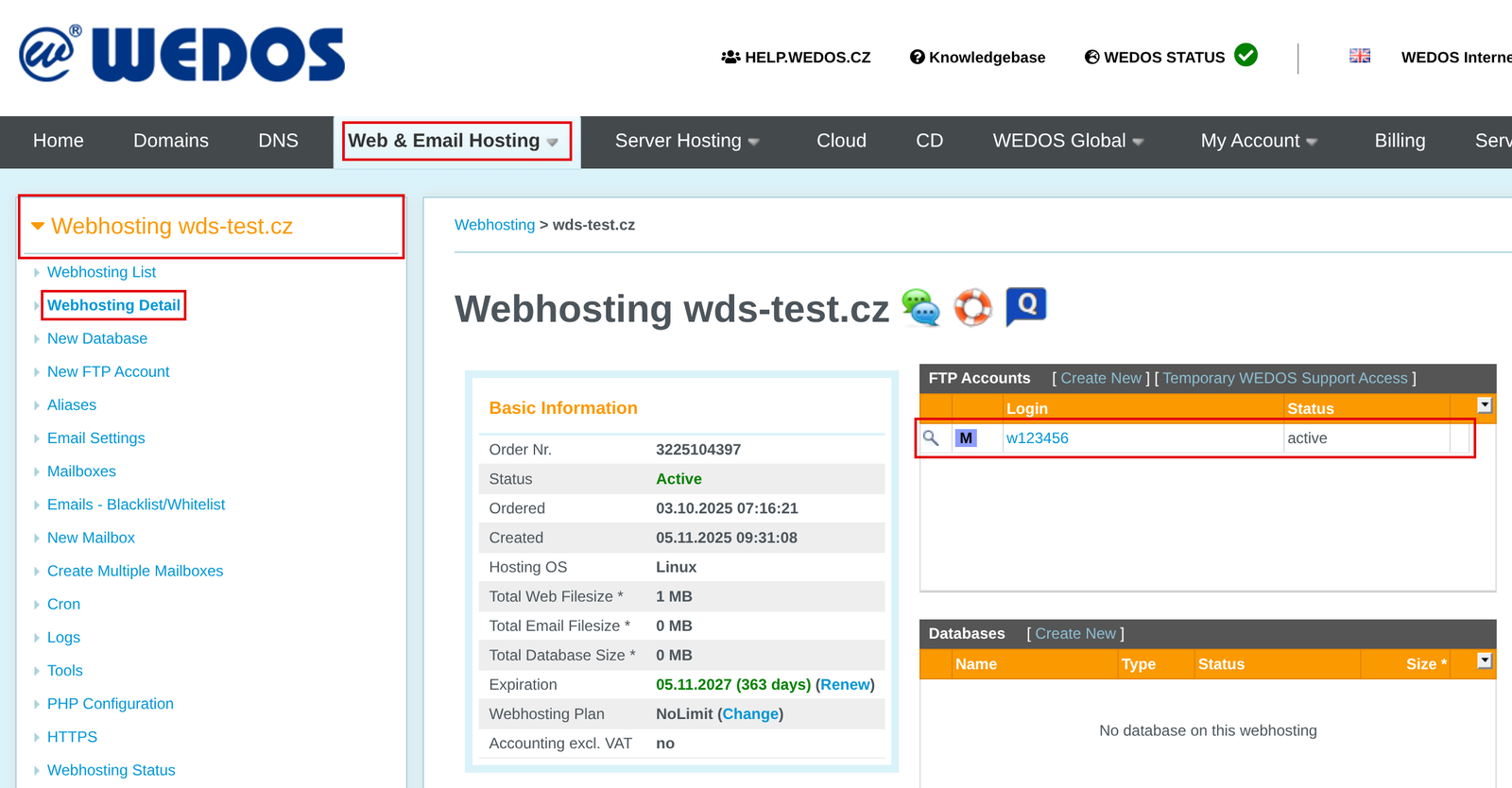
The main FTP account is the only FTP account authorized to enter the root folder of the Webhosting. If you need to work with the folders of the basic Webhosting structure, or access the restored backup, connect via the main FTP account.
You cannot delete the main FTP account, only Block.
Additional FTP Accounts
Additional FTP accounts are intended primarily for administrators of individual websites, especially if you run several of them on one Webhosting (through subdomains or aliases). They have permission to access only the www folder or a designated subfolder.
The name of an additional account always has the form wXXXXXX_identifier, where XXXXXX is the same, usually six-digit, number as in the main account. As the identifier, you can choose any account name up to 20 characters long (lowercase and uppercase letters without diacritics, digits).
Adding an additional FTP account
You create an additional FTP account for a Webhosting with these steps:
- Log in to the Customer Administration ⧉.
- In the top menu, select Hosting services Webhosting (or WMS).
- From the list, select the Webhosting you want to add the new FTP account to.
- In the left menu or in the FTP account overview, click New FTP account.
- Fill in the form:
- Login:Enter an individual name for the FTP account.
- Directory: Enter the folder (including subfolders) that the account will have restricted access to. After the FTP account is created, you can no longer change this directory. If the directory does not exist, connecting to FTP with this account will fail.
- Password email recipients: Tick this and fill in all email addresses that should receive the password for this FTP account.
- Click the Create FTP Account.
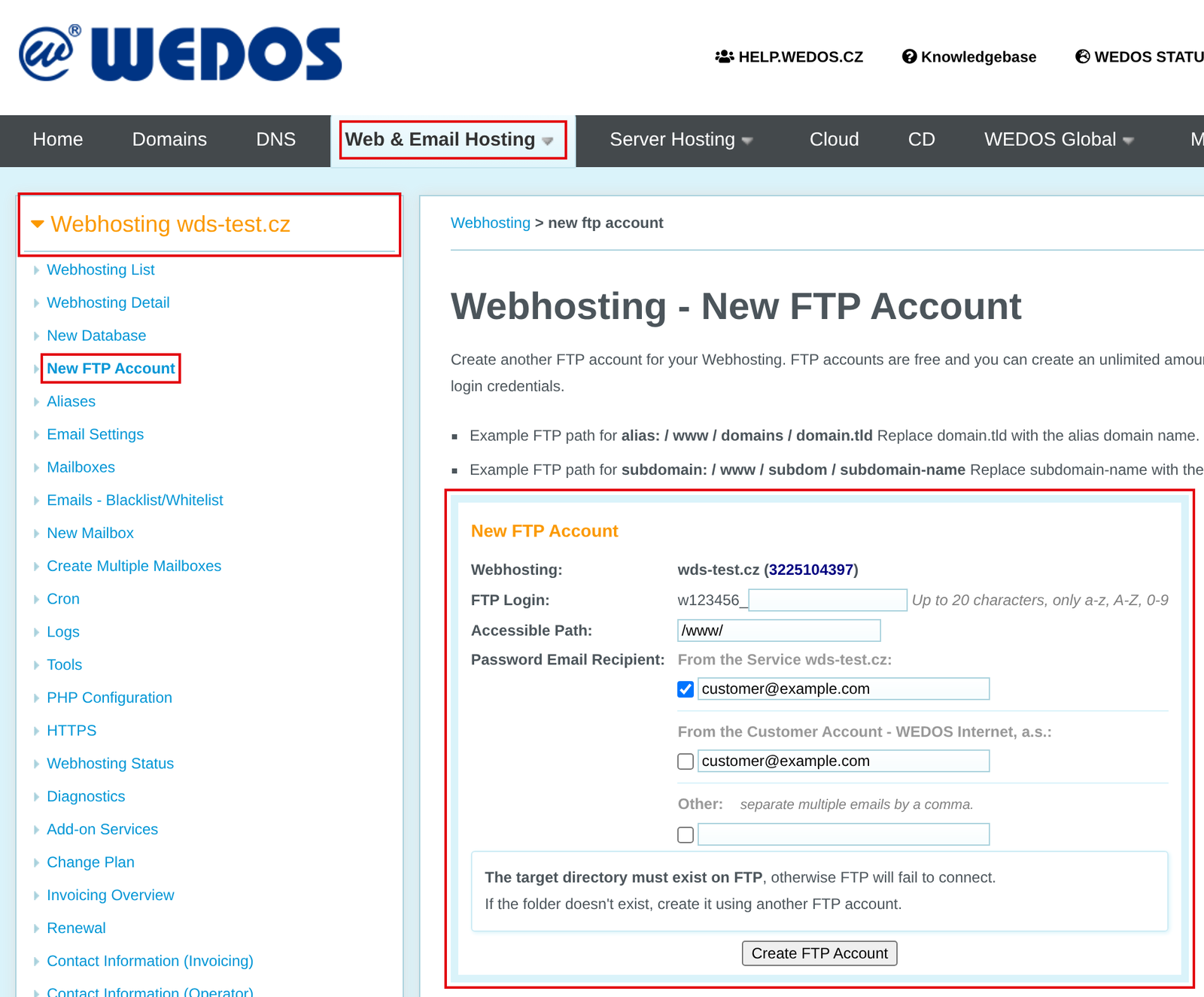
After the account is created, the assigned directory cannot be changed. If the directory does not exist on the FTP, connecting with this account will fail.
Deleting an additional FTP account
You delete an additional FTP account with these steps:
- Log in to the Customer Administration ⧉.
- In the top menu, select Hosting services Webhosting (or WMS).
- From the list, select the Webhosting you want to delete the FTP account from.
- In the FTP account overview, click the name of the account you want to delete.
- In the highlighted field, type the text DELETE.
- Click the Delete FTP Account.
FTP Account Management
The system sends the FTP login credentials by email when the Webhosting is created (for the main FTP account) to the billing email of the service, or when an additional FTP account is created to the selected emails. These details, except for the password, cannot be changed after the account is created.
If you want to make the account unavailable with the given credentials while you are not actively using it, you can temporarily Block.
In the Customer Administration, you access account management as follows:
- Log in to the Customer Administration ⧉.
- In the top menu, select Hosting services Webhosting (or WMS).
- From the list, select the Webhosting whose FTP account you want to manage.
- In the FTP account overview, click the name of the account you want to manage.
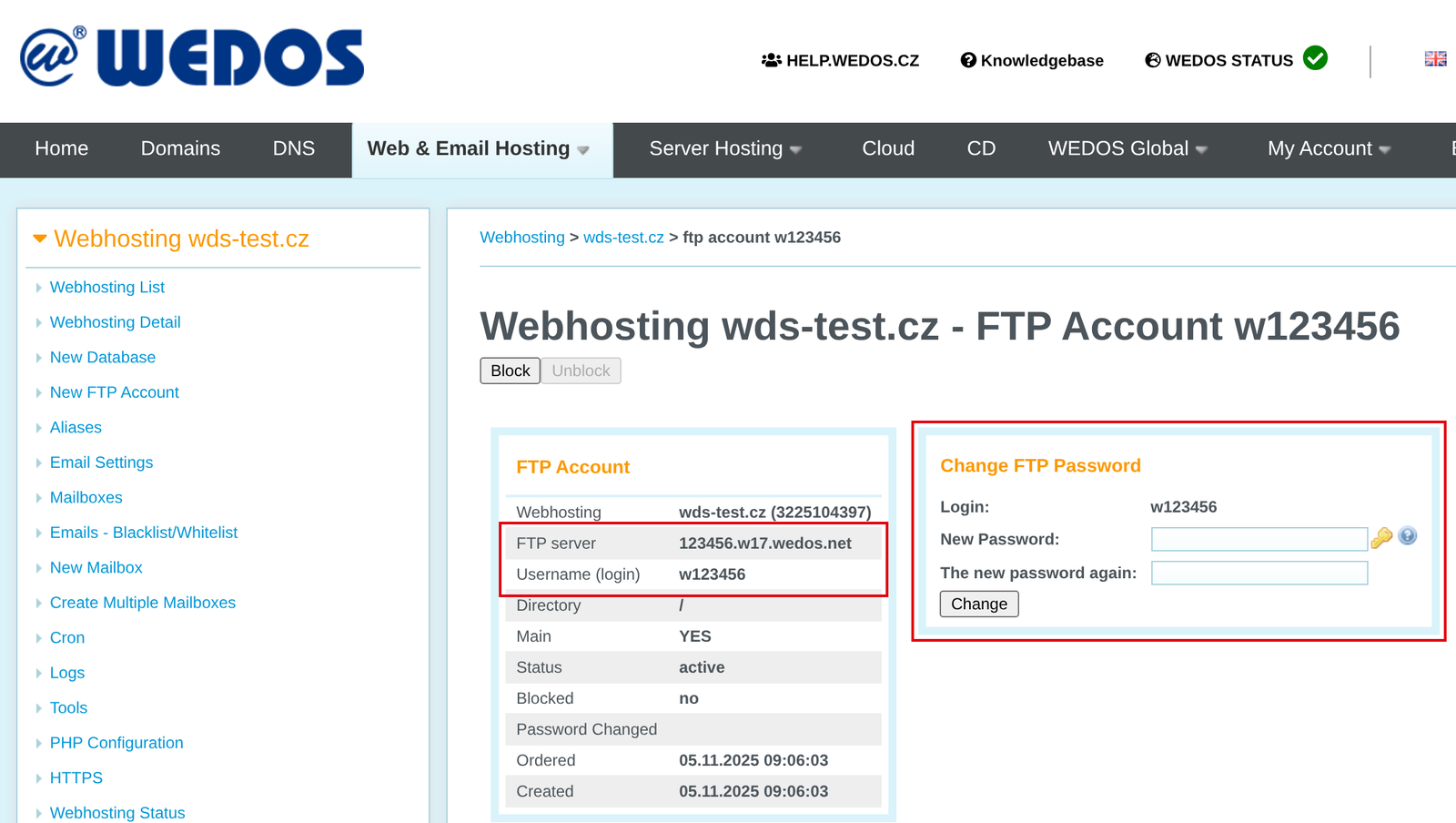
As part of management, you can:
Verifying login credentials
You can find the login credentials directly in the detail of the FTP account. To connect to FTP, you usually need to know the address of the FTP server and the Login. For more information, see the article FTP – Login.
The FTP account password can only be found in the setup email. If you do not have this email, you must change the password.
In the FTP account detail, you can also check the directory the account points to. This directory cannot be changed. If you need to point the account to a different directory, create a new.
Changing the FTP account password
If you need to change the FTP account password, follow these steps:
- Enter the management of the selected FTP account using the procedure above.
- In the FTP password change fill in:
- New password: Enter a new password containing at least 6 characters, with at least one uppercase letter, one lowercase letter and one digit. Click the key icon next to the field to generate a random secure password.
- New password again: To verify, enter the password from the first field again.
- Click the Apply Changes.
For security reasons, the password must not contain the FTP account name or these strings: 12345, aaaaa, admin, heslo, passwd, password.
Blocking an FTP account
Blocking an FTP account prevents anyone with this account from logging in to FTP, without deleting the account. You can unblock the account immediately at any time from the Customer Administration.
To block or unblock an account, use this procedure:
- Enter the management of the selected FTP account using the procedure above.
- Click the Block or Unblock.
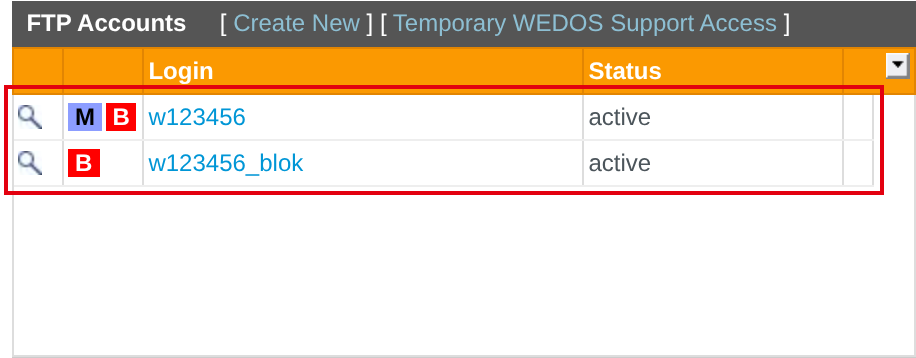
You can recognize a blocked account by the icon with the letter B in the FTP account overview in the Webhosting detail.
You can block the main account too.
Common problems
You can find solutions to FTP connection and file management problems in the article FTP – Troubleshooting.
Common problems with FTP accounts include:
- Forgotten FTP account password
- Non-working login
- Accidentally deleted account
- A file uploaded via FTP reports Forbidden
Forgotten FTP account password
Problem: We lost the FTP account password and need it sent again.
Solution: If you do not have the email with the FTP account password saved anywhere, Support cannot send it to you again. Change the password and save it.
Non-working login
Problem: It is not possible to log in to FTP.
Cause: The most common causes include a changed password or a deleted folder that the account has access to. The account may also be blocked or deleted.
Solution: Follow these steps:
- Test the login in the client WebFTP ⧉.
- Check that the account and the folder it has access to exist (log in with the main account).
- If the account is blocked, unblock it.
- If the account is deleted, create a new with new login credentials.
- Change the password and wait 15 minutes for the changes to take effect.
If none of this helps, contact customer support ⧉. State the name of the Webhosting, the name of the FTP account and attach a screenshot ⧉ of the error message.
Deleted account
Problem: We accidentally deleted an FTP account.
Solution: Create a new account with new login credentials. The original login credentials cannot be restored.
A file uploaded via FTP reports Forbidden
Problem: The website does not load a folder or file uploaded via FTP and displays a “Forbidden” error.
Cause: The file has permissions that do not allow the web server to read it. There is no difference between FTP accounts: they all have the same permissions and differ only in their root directory.
Solution: Fix the file permissions according to the article Webhosting – Error 403: Forbidden. If that does not help, set up, according to the article Webhosting – Temporary FTP Access for Support temporary access and tell Support which file is affected.
Frequently Asked Questions
I cannot connect to FTP, what should I do?
Go through the guide FTP – Troubleshooting.
How do I give an external administrator access only to the website files?
Create an additional FTP account for them, restricted to the folder of their website. They do not need a customer account, and you can later block or deletethe account. If you want to give them access to the service as a whole, add them as an authorized user according to the article Administration – Authorized User.
Where can I find the FTP username and password?
You can find the username (login) in the FTP account detail, and the password only in the account setup email. If you do not have it, change the password.
Can any FTP account have higher permissions than the others?
No. All Webhosting FTP accounts have the same permissions and differ only in their root directory. Only the following may write to the Webhosting root folder: main FTP account.
How can I best secure my FTP account?
Set a strong password and when you are not using the account, block.