
This article is simplified for beginners. For complete information about the WP Hosting service, including solutions to common problems, see the Hosting WP category.
How would you like to get started with your new website?
Domain with a WordPress demo
Please include the following information in your order:
- Domain name: Enter a domain name that has not yet been registered, with any extension.
- Hosting Option: WordPress NoLimit WPSPECIAL OFFER – 30-day trial(website + email, included with domain order)
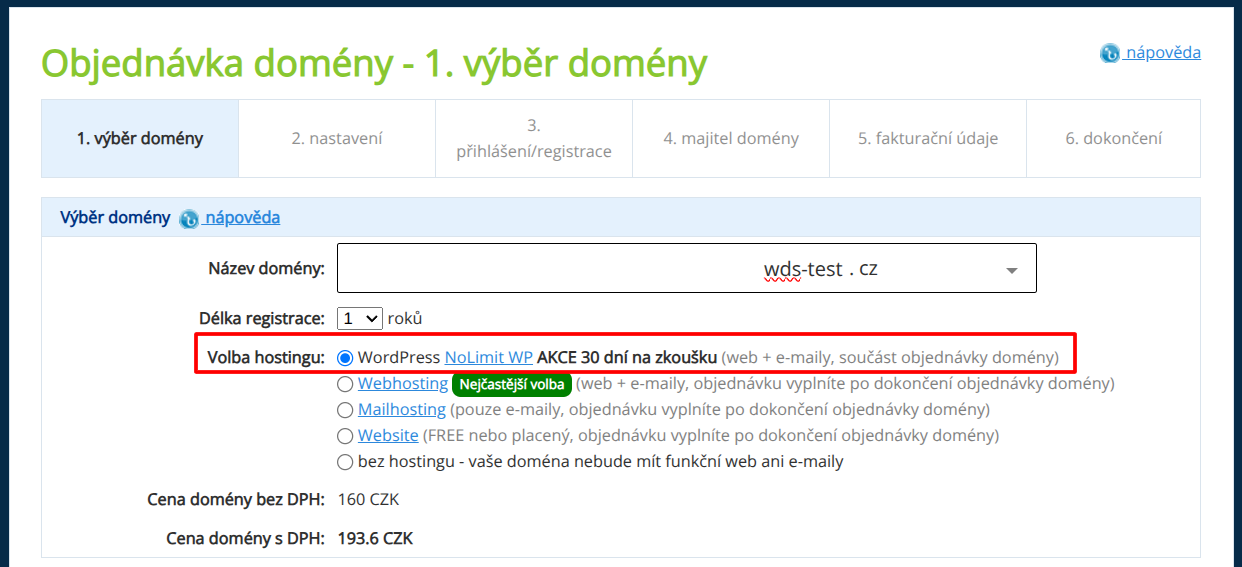
Tick the consents.
Click on the Continue Order button.
Go through the remaining steps of the order:
- Settings: don't change anything, just tick the consents.
- Login/Registration: Log in or register for a WEDOS customer account. If you are already logged in, the order will skip this step.
- Domain Owner: Enter complete and truthful information about the owner of the newly created domain.
- Invoicing data: enter the data for issuing and sending invoicing documents. Check consents.
If you provide invalid or false information, the domain registry or WEDOS as the hosting provider may suspend or cancel the service without refund.
On the last page, check the information you entered and click Finish Order.
Pay the order.
- Open the email with the subject Invitation to pay from WEDOS (
hosting@wedos.com) sent to the billing address. - Please send the exact amount (including cents) using the corresponding payment reference to the account number provided, or use the online payment link in the following format:
client.wedos.com/f/...where ... is a unique identification code.

Done! 🎉
Once your payment has been successfully received and processed, the system will set up your domain and NoLimit WP hosting within one hour.
You will receive instructions on how to use WordPress via email.
Payments by card are usually made within a few minutes, online payments within an hour. A regular transfer (including QR code payments) can take 1-2 working days.
Full version of WordPress
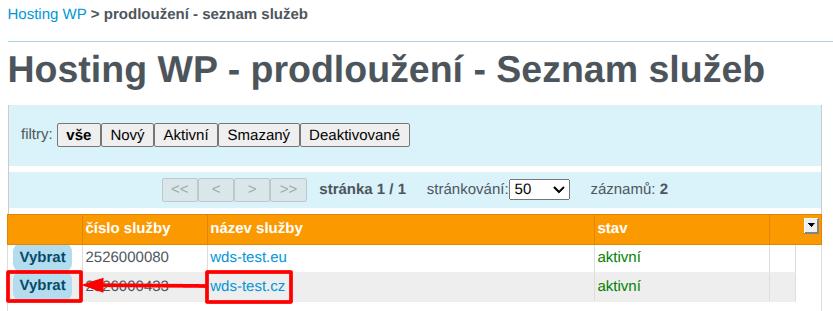
Log in to the customer portal and go to the Hosting WP service renewal page.
From the list, select the Hosting WP plan you want to upgrade to the full version.
Fill out the form to upgrade from the TRIAL version of the service to the full version.
After filling in your billing information, check the consent boxes and click the " Order Service" button.
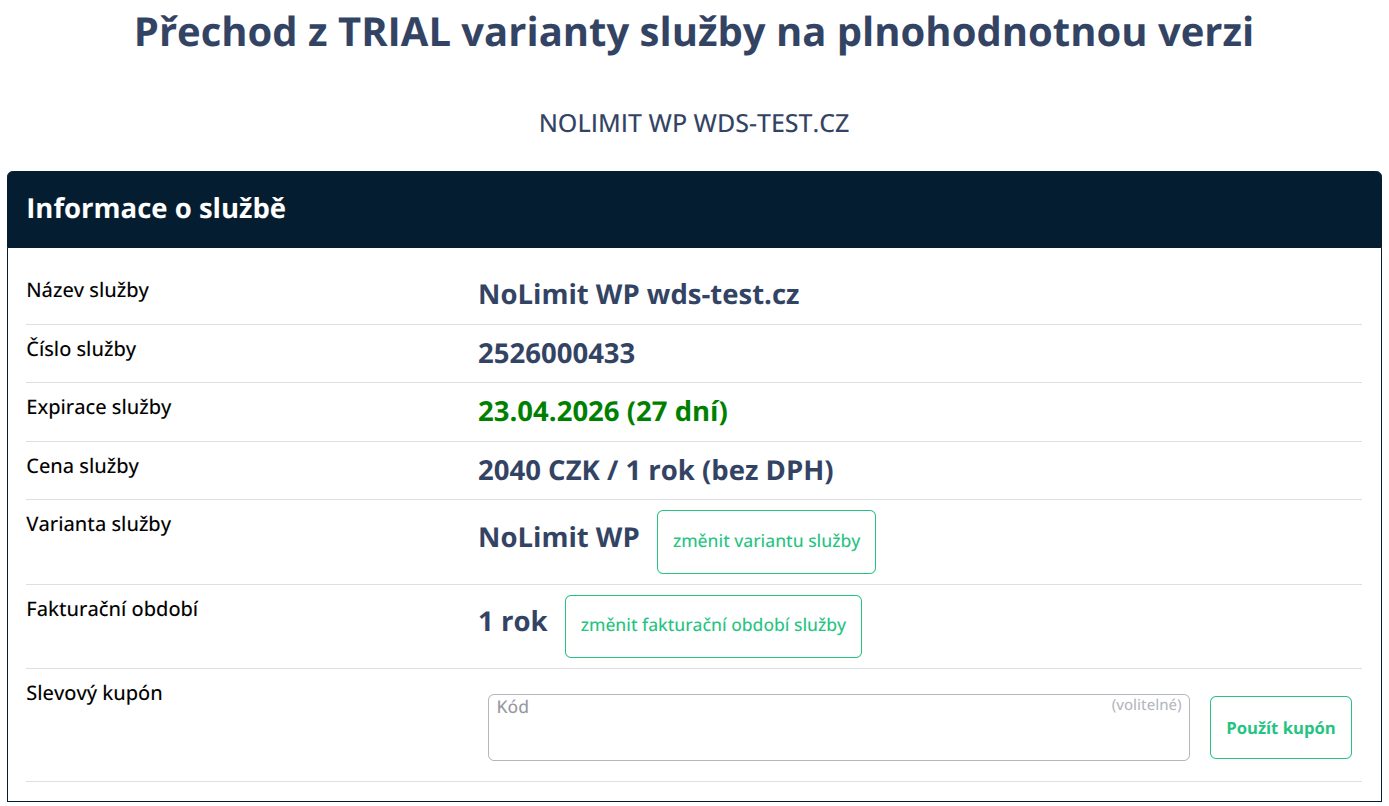
If you have a coupon for setting up a new WP Hosting service at a discount, enter it in the " Discount Coupon " field and click the " Apply Coupon" button.
Done! 🎉
The system will immediately generate and send an invoice for the new service period, which begins on the day the trial period expires. So you won’t lose your free period!