
In this guide you will learn:
- What plans are available for the Mailhosting service?
- How to change your plan
- How to change the billing period
- Frequently Asked Questions
Rate Comparison
The Mailhosting service offers two plans, which can be further customized with additional services. The main differences between the plans are listed in the table below:
| Parameter | Individual | Business |
|---|---|---|
| Number of email accounts | Unlimited | Unlimited |
| Default folder for emails | 5 GB | 1 TB |
| Maximum email storage | 505 GB | 5 TB |
| Billing period | One-year-only | Annual or monthly |
Change of tariff
With the Mailosting service, you can upgrade or downgrade your plan. When changing your plan, please keep the following rules in mind:
- If the rate is increased, the system will issue a supplementary invoice for an amount equal to the price of the service for the entire remaining period. If any of the supplementary services are canceled when the rate is increased, the system will reduce the price accordingly.
- If you downgrade your plan, we will not refund any money paid for the upgrade, not even partially. The downgrade option is available only if your email service usage meets the criteria for the target plan.
Preparing for a rate change
You don't need to do anything to upgrade your plan.
Before downgrading your plan, make sure you don’t have more than 5 GB of emails in your inboxes. If you need to switch to this plan with a larger email capacity, contact customer support using the ⧉ form. Please specify the service name and the desired email capacity.
Making a rate change
Follow these steps to change your Mailhosting plan:
- Log in to the customer administration ⧉.
- In the navigation bar, select Hosting Services > > Mail Hosting.
- Select the service from the list for which you want to change the plan.
- Select Change variant from the left menu.
- For the selected plan, choose a billing cycle and click the SELECT button.
- Confirm the change by clicking the SET RATE button.
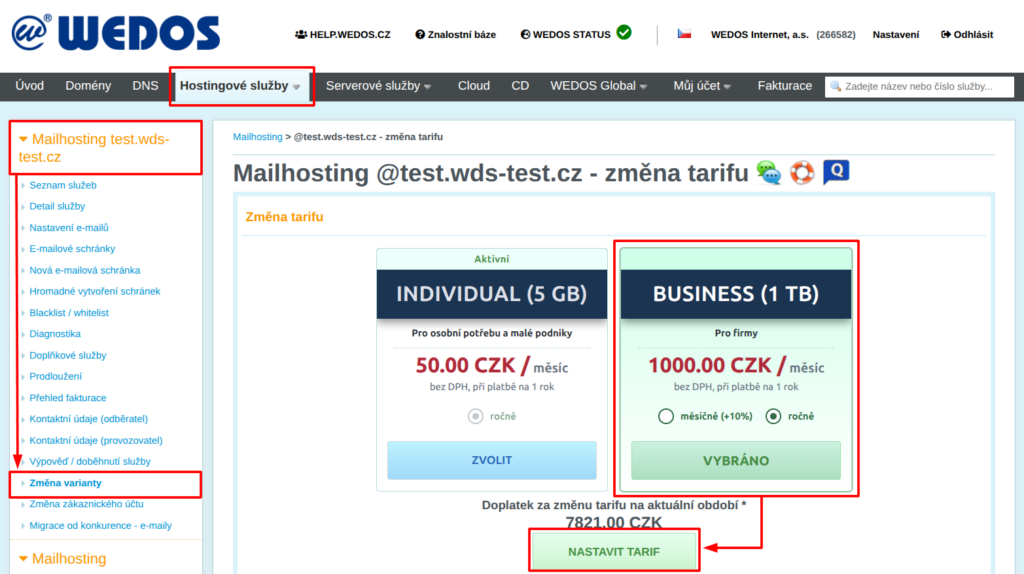
If the additional charge for the change is not zero, the system will immediately generate and send an additional invoice.
Change in billing period
To change the billing period, follow the same steps as when changing your plan, but in the box for your selected plan, check the desired billing period.
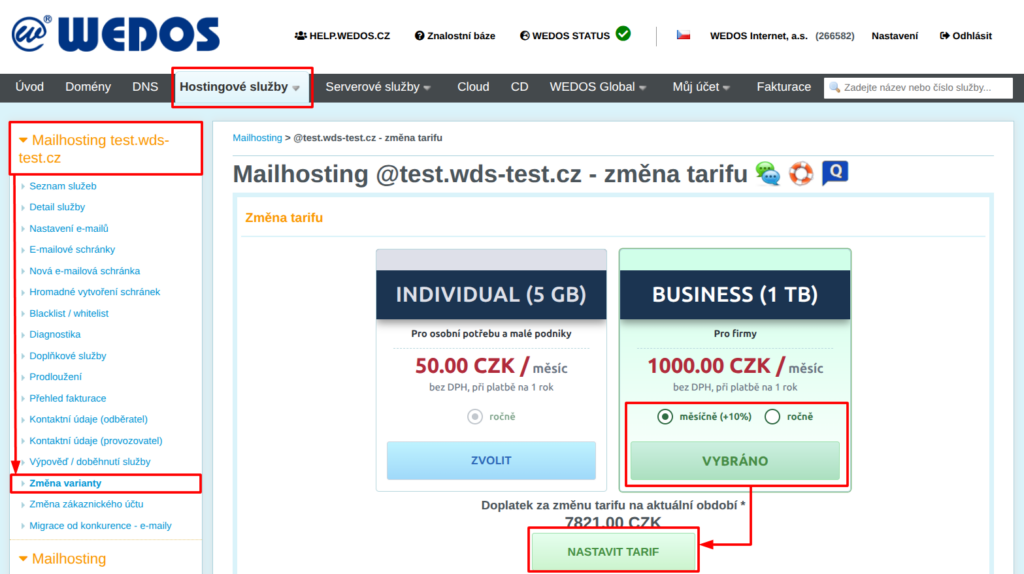
The change to the billing period will take effect after the current service expiration date.
Frequently Asked Questions
I'm upgrading to the Business plan with monthly billing. Why is the amount on the additional invoice so high?
The additional invoice charges for the service based on the current billing period. For monthly billing cycles, the system will not issue invoices until the following billing period.