
This article is simplified for beginners. For complete information about changing one type of hosting to another, see the articles Services – Transition Between Webhosting and Mailhosting and Services – Transition Between Webhosting and WebSite.
What do you want to do with your hosting services?
Replacing a service on a domain
Visit the link for terminating the original service:
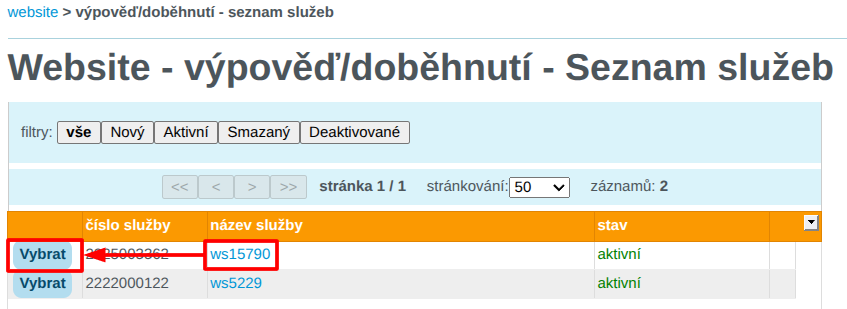
Select the service you want to cancel from the list.
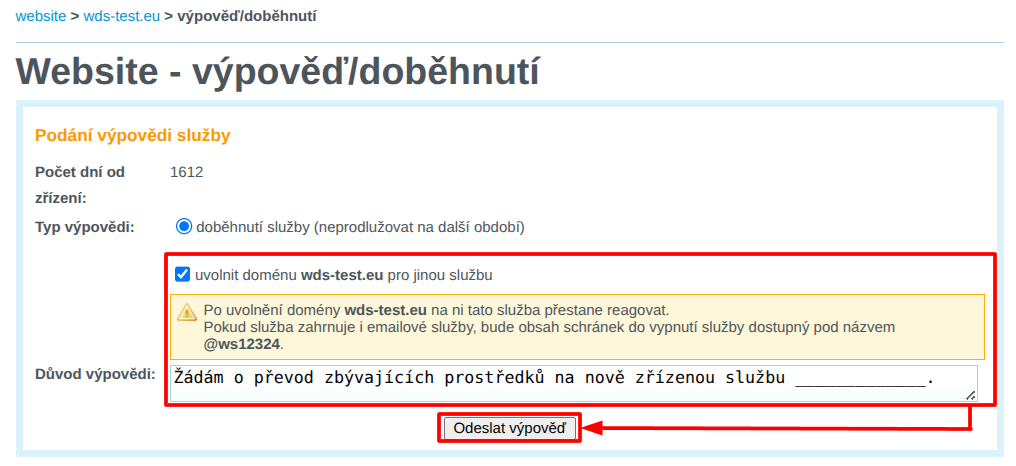
In the termination/expiry interface:
- Check the option release the domain for another service.
- In the Reason for termination field, enter a request to transfer the remaining funds to the newly created service. Enter the domain name of the service you will be setting up.
Order a new service on the original domain:
Done! 🎉
You now have a new service on the original domain, plus a bonus period for the termination of the original service.
Moving emails to the new service
Log in to the Customer Administration and visit the link for migrating emails to the service:
Select the new service you want to move the emails to from the list.

Fill in the following details in the form:
- IMAP server: enter
wes1-smtp.wedos.net. If the connection fails, trywes2-smtp.wedos.net. - Migration of new mailboxes: enter pairs consisting of the full name of the original mailbox (including the current domain) and its password. Separate the name and password with a space, and enter each additional pair on a separate line.
If the original service has been renamed to a subdomain old as described in the previous chapter, enter the original mailbox with the name of this subdomain, e.g. info@old.wds-test.cz.
After filling in the details, click the button Continue.

Done! 🎉
Wait for the mailboxes to be created and their contents moved. The transfer usually takes from several tens of minutes to a few hours, depending on the volume of emails and the load on the migration server.
New mail will now be delivered to the new mailboxes.