
In this guide you will learn:
- How to Move WordPress from Another Service to Hosting WP
- How to move emails
- Frequently Asked Questions
Migrating WordPress to Hosting WP
If you have an existing WordPress website hosted elsewhere (on anotherweb hosting service or with a competitor), we can help you migrate it to the Hosting WP service. The process consists of the following steps:
- Cloning a WordPress site to VEDOS using a plugin
- Verifying the functionality of the copy on the test domain
- Setting up a complete service for your own domain
Cloning WordPress
The migration plugin is intended only for migrations to Hosting WP or SODEW. To migrate to NoLimit Webhosting, use the automatic migration tool described in the guide " Webhosting – Automatic Data Migration."
The first step in migrating the service is to create a working copy of your website. The process is fully automated via a plugin and involves setting up a test domain, so it will not affect the operation of your website on the original platform.
To clone an existing WordPress site to the Hosting WP service, first download, install, and activate the cloning plugin:
- Go to https://vedos.cz/vedos-transfer-main.zip ⧉ and download the ZIP file containing the copy plugin.
- Log in to the WordPress admin panel of the site you want to move.
- In the left-hand menu, select " " > " Plugins " > " " > " Add Plugin."
- Click the " Upload Plugin" button.
- Upload the file and click the Install button.
- Activate the plugin.
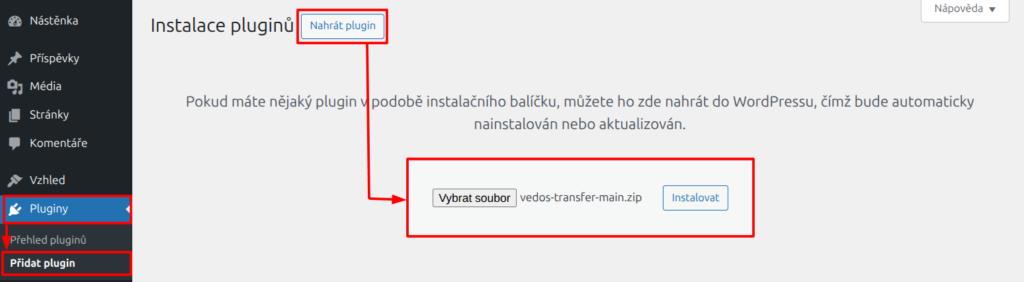
Once the installation and activation are complete, follow these steps:
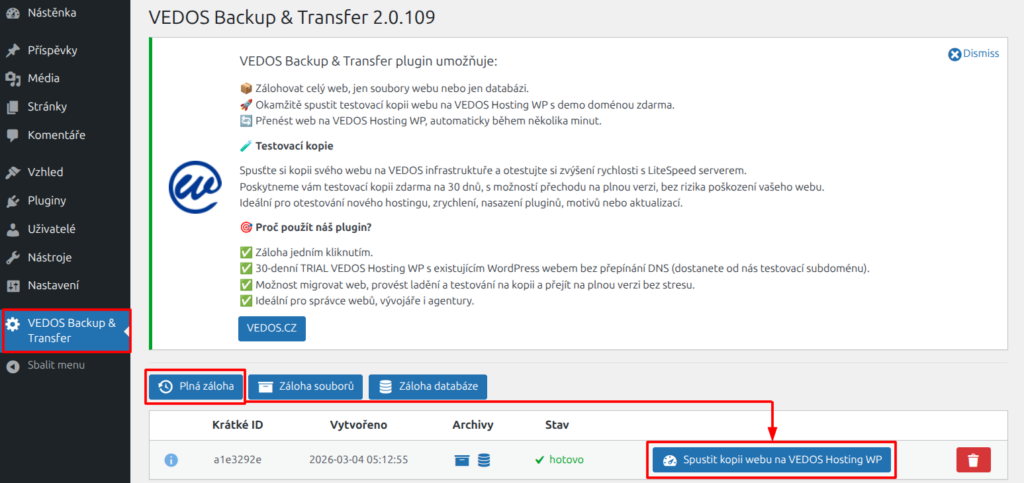
- In the left-hand menu, select " " and then " VEDOS Backup & Transfer."
- Click on Full backup.
- Please wait while the backup is generated.
- Click the " " button to launch a copy of the website on VEDOS Hosting WP.
- Please wait for the copying process to finish.
- Click the green button with the domain name in the form of
xxx.123.vedos.websiteOpen a copy of the website on the specified test domain.
Functionality Check
We provide the testing environment and domain for 30 days starting from the moment you begin copying WordPress to Hosting WP.
You can find the cloned website on the test domain in the form of xxx.123.vedos.website. Try it out:
- Website Speed and Administration
- Functionality:
- Sending emails via SMTP (the service does not support PHP mail)
- common website features (e.g., shopping cart, contact forms, etc.)
- logging in as different roles (e.g., admin, regular user, …)
- services provided by third-party providers (e.g., monitoring, payment gateways, etc.)
Setting up a service on your own domain
If you are satisfied with the service and everything is working properly, please contact VEDOS Support to request a transfer to the Hosting WP service:
- Log in to the customer administration ⧉.
- Please contact support using the form ⧉. Include the URL of the test domain, the name of the website’s target domain, and a request to prepare the domain for the Hosting WP service. A sample request is provided below.
- Please wait for a response and further instructions. We typically respond within one business day.
Sample request:
I am requesting the setup of a Hosting WP service for the domain (replace [ ] with the domain name for which you are setting up the service). A working copy of the website is located at a temporary address (replace [ ] with a temporary address such as xxx.123.vedos.website).
Moving emails
To use the Hosting WP service with an email plan (NoLimit, Business), first make sure that no other VEDOS hosting service using the same domain is preventing this. If you have such a service, release the domain by following these steps:
- Go to the interface for renaming your Web Hosting or Mail Hosting service, or remove the alias by following the instructions in the link.
- Rename the service to a subdomain, for example:
stary.domena.tldwheredomena.tldis the service's original domain.
Once the domain has been released, you can order a new Hosting WP service under that name. Then follow the instructions in the "Emails – Automatic Migration" guide to migrate your emails.
When automatically migrating emails from another hosting service to VEDOS, look up the IMAP server address for the original service by following the instructions in the " Emails – SMTP, POP3, IMAP" guide.
Enter email addresses using the current service domain (following the format stary.domena.tld).
Frequently Asked Questions
What should I do with the old service that I no longer need after the migration?
Cancel the service and ask support to transfer the unused period to Hosting WP. Please provide the name of the original service (after renaming) and the new one.