
This article addresses checking the size of the hosting service's emails and individual mailboxes. If you need to increase the capacity, follow the instructions in Emails - Increase Mailboxes.
In this article you will read:
- How to set the size of mailboxes
- How to check your email inbox for availability:
- Common problems
- Frequently Asked Questions
Mailbox size
By default, there is no limit on the size of individual mailboxes, and their storage usage is counted toward the total hosting space. The same applies to the maximum number of emails that can be sent per day.
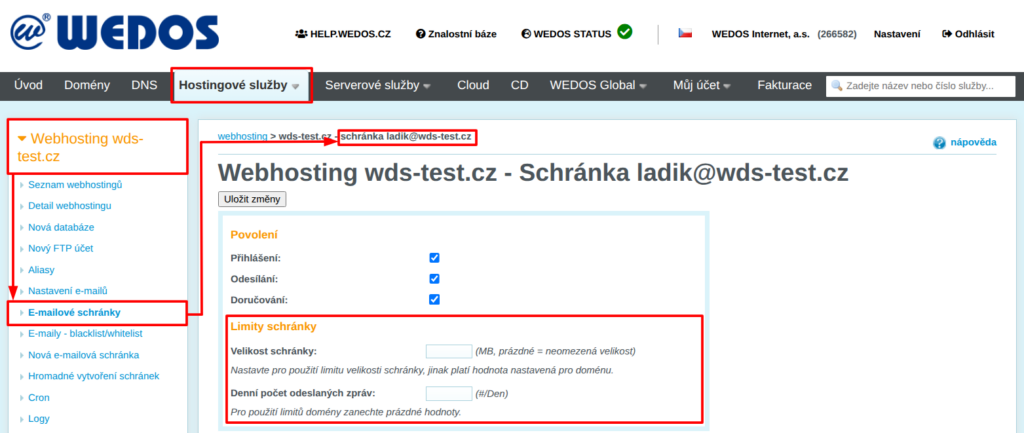
To limit the size of individual mailboxes, follow these steps:
- Log in to the customer administration ⧉.
- In the top menu, select " Hosting Services " > " " > " Web Hosting," " Mail Hosting," " Hosting WP," or " WMS."
- Select the specific service you want to check the mailbox for from the list.
- In the left-hand menu, click on Mailboxes.
- In the table, open the details for the specific mailbox you want to restrict.
- In the Mailbox Limits section, set the desired size (to restore the default settings, delete the value).
- Click the Save Changes button.
Open the list of service email accounts:
Checking e-mail box availability
In case the email inboxes reach 90% or 98% full, the system will notify you by email(unless you cancel this setting). If you have limited the capacity of a particular mailbox in its settings, the system sends a notification to that mailbox automatically.
Completely filling the mailbox blocks both receiving and sending mail. You can resolve mailbox overflow by:
- Deleting - remove unnecessary sent and received mail, especially SPAM.
- Increase the space by following the instructions in the Emails - Increase the mailbox instructions.
Control in customer administration
Follow these steps to check availability in customer administration:
- Log in to the customer administration ⧉.
- In the top menu, select Hosting Services Webhosting, Mailhosting, WebSite, or WMS.
- Select the specific service you want to check the mailbox for from the list.
- In the left-hand menu, click on Mailboxes.
- Check the table for the size of each box and the total size at the date and time indicated.
Check the service's email inboxes:

The system updates the sizes of e-mail boxes in the customer administration irregularly. The dates and times at which the sizes are valid can be found in the table next to the size records.
Another way to find out the current size of emails in the customer administration is to perform diagnostics.
Check in WebMail
Follow these steps to check the availability of the WebMail client:
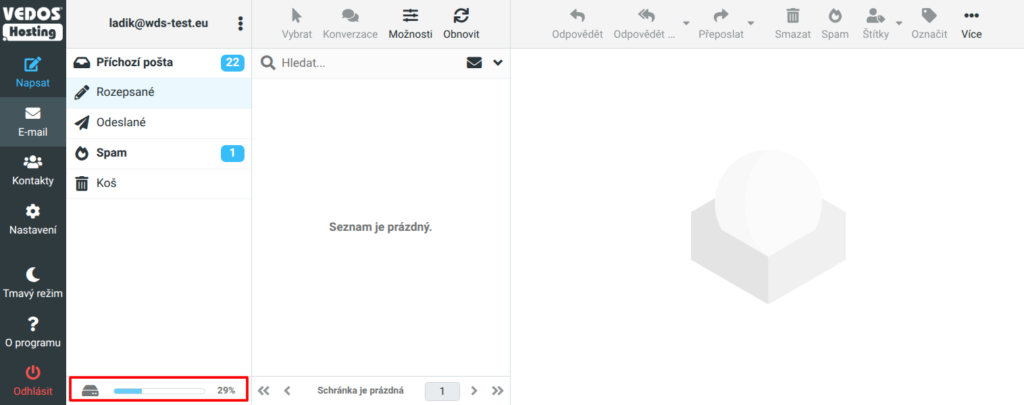
- Log in to WebMail ⧉.
- You can find the mailbox occupancy (in percentage) at the bottom of the left menu.
Common problems
Common problems with mailbox occupancy checks include:
Outdated email size data
Problem: After deleting emails, the system still shows the old values.
Cause: the system does not update the recalculated values in the administration continuously. However, when an update occurs, it lists the time of the last update in addition to the value.
Solution: If you need to update your email size as soon as possible, contact support to update your email quota. Please provide the name of the service.
Frequently Asked Questions
How do I find out which data is filling my mailbox the most?
The easiest way to find out how full individual mailboxes are is in the administration.
You can find out how full the subfolders of your mailbox are in WebMail &boxboxbox; in Settings Folders (Selected folder) Size. The size of individual emails is listed in the overview.