
This article covers editing a domain contact held with WEDOS. If you do not have the contact with us, create it following the article Domains – New Domain Contact or transfer it following the guide Domains – Contact Transfer.
In this article you will learn:
- When to use this guide
- How editing a domain contact works
- How to find a contact:
- How to edit a contact
- How to hide contact details
- How to delete a contact
- Common problems
- Frequently Asked Questions
When to use this guide
- The registry has sent you an email saying that the domain details are incorrect or a phone number is missing: The registry requests a correction of the contact details.
- You need to change the contact’s address, phone number or email: Editing a Domain Contact.
- In the administration you only see the contact identifier (e.g. WEDOS-ABC-123456) and don’t know where to edit it: Contact in the domain detail.
- The system reports “Authorization password is not valid”: The authorization password is incorrect.
- The form is missing the field for the name or company name: The name or company name cannot be changed.
- The contact cannot be saved after editing: The contact change cannot be saved.
Editing a Domain Contact
You can change any contact details except for the name and company name. Registries treat this change as a change of domain owner, even though it may be the same person. So if you are changing these details, among others, create a new contact following the guide Domains – New Domain Contact and then change the domain owner following the guide Domains – Change of Owner.

Before you start editing, make sure the contact is managed by us. If it is not, transfer it following the guide Domains – Contact Transfer.
You can edit a domain contact for any contact from these registries:
- CZ.NIC ⧉ (domainscz)
- EURid ⧉ (domainseu)
- NASK ⧉ (domainspl)
- SK.NIC ⧉ (domainssk)
- Subreg ⧉ and Verisign ⧉ (domains gTLD, e.g. com, org, info, …)
- CentralNic ⧉, Donuts ⧉, GoDaddy ⧉ and Tucows ⧉ (domains nTLD, e.g. fun, store, online, …)
For gTLD domains in the registry Ascio ⧉ you cannot edit the contact directly; you make changes by changing the owner. Follow the guide Domains – Change of Owner.
Finding a contact
You can access the contact via the domain administration, or find it in the contact list.
Contact in the domain detail
You can use the following procedure only if the domain is registered with us (otherwise use the guide for finding a contact in the list):
- Log in to the Customer Administration ⧉.
- In the top menu, select the Domains.
- Click the domain name to open its Detail.
- In the Information box, find the Contact owner or Contact admin.
- Click the name of the selected contact. Note: clicking the pencil icon takes you to the management of the domain owner, not the contact!
- Continue by editing the contact.
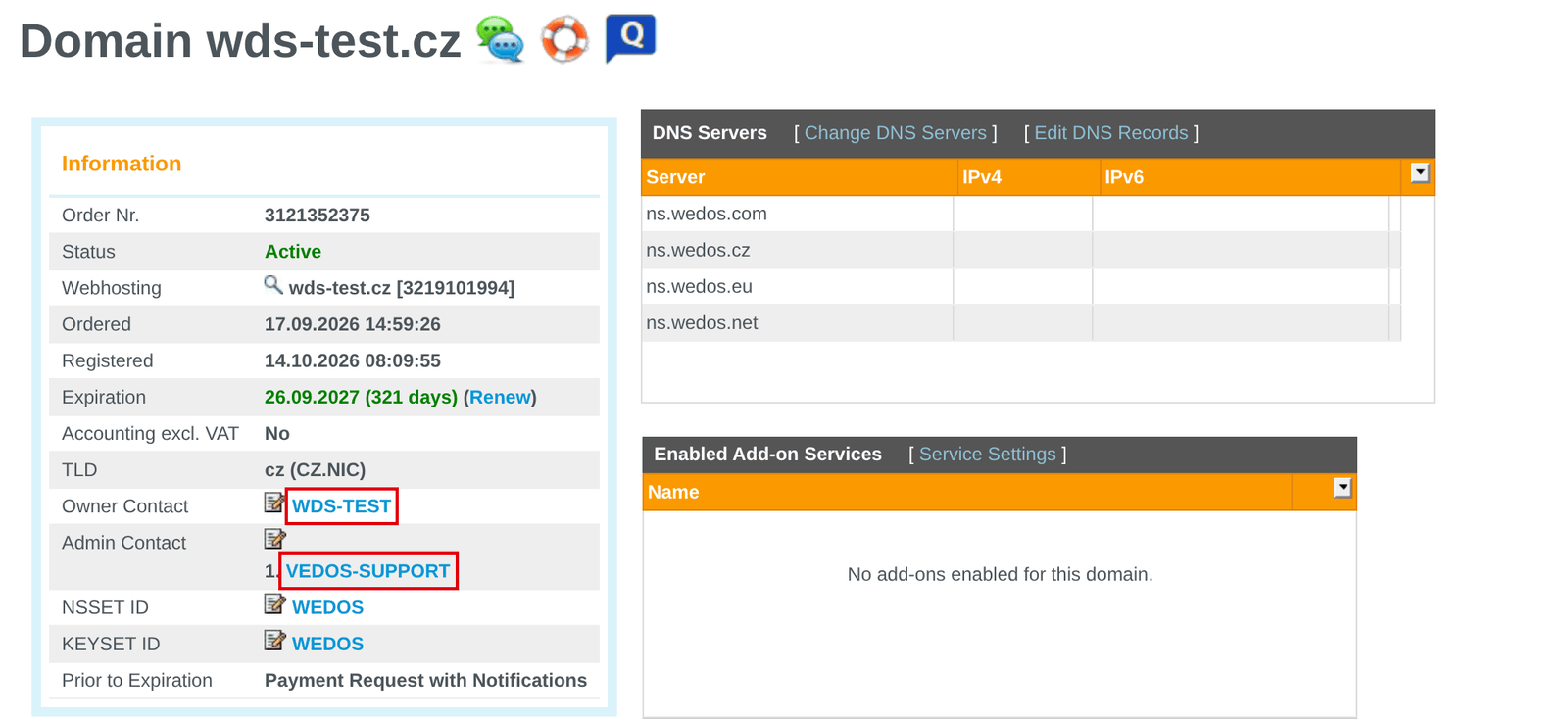
To manage a contact of a domain, click its name. Clicking the pencil button does not edit the contact; it changes the owner or admin of the domain.
Contact list
If you only have a contact registered with WEDOS, find it in the list with these steps:
- Log in to the Customer Administration ⧉.
- In the top menu, select the Domains.
- In the left menu, expand TLD tools, where TLD is the specific domain extension or registry.
- Select the Contact list.
- Find the contact you want to edit.
- Continue by editing the contact.
Open the registry contact list:
Editing a Domain Contact
If you need to change the name or company name, create a new contact with the current details and perform a domain owner change.
Edit the contact by following these steps:
- Use the send password link to send the authorization password to the contact’s email.
- Enter the Contact authorization password.
- Click the Edit / Show Hidden Data.
- Make the necessary changes.
- Click the Submit.
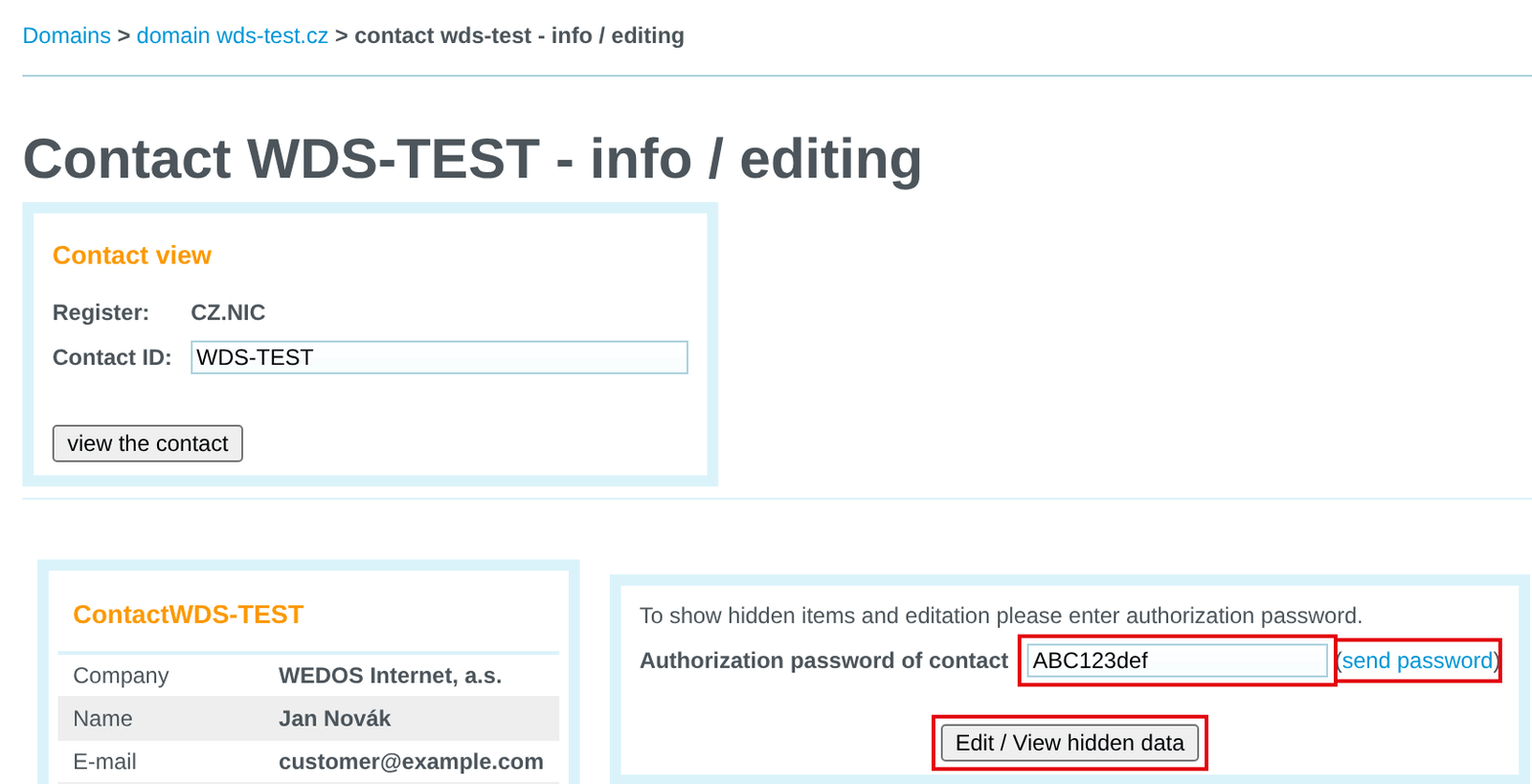
The contact change takes effect within 1 hour of successfully submitting the request.
Hiding contact details
You can find the options for hiding contact details in the article Domains – Hiding Contact Details.
Deleting contacts
The system automatically deletes contacts that have been inactive (not assigned to any domain) for more than 60 days.
Common problems
When editing contacts, you may run into the following problems:
- The contact cannot be found
- The contact authorization password does not arrive
- The contact authorization password does not work
- The name or company name cannot be changed
- The contact change cannot be saved
- The registry requests a correction of the contact details
The contact cannot be found
Problem: I do not see the contact in the overview of any registry.
Cause: The contact may be in a different customer account, with a different registrar, or deleted (if the contact went unused for at least 60 days).
Solution: Try accessing the contact directly from the domain detail. If that is not possible, check the following:
- If the contact is in a different customer account, move it to your account.
- If the contact is with a different registrar, transfer it for the CZ.NIC registry; otherwise create a new one.
- If the contact was not assigned to a domain for more than 60 days, the system deleted it automatically, so create it again.
The authorization password does not arrive
Problem: The email with the contact authorization password does not arrive.
Solution: Wait a few minutes and try sending it again, ideally from a different web browser. Verify that the email address the authorization message is sent to is current, and that the authorization email did not end up in the SPAM folder. If the problem persists, contact customer support via the form ⧉. Include the name of the contact and the assigned domains or registry.
The authorization password is incorrect
Problem: The error is displayed: The authorization password is not valid.
Cause: Most often the domain authorization password was entered instead of the contact password. Authorization passwords can also expire after a certain time or after use.
Solution: Make sure you are entering the contact authorization password, not the domain one. Ideally, have the password sent using the link next to the field where you enter it. Make sure the password you are entering has not been overwritten by another request to send it, and that not too much time has passed since it was generated (ideally enter it within an hour of requesting it).
The name or company name cannot be changed
Problem: The contact change form does not contain a field for changing the person’s name or company name.
Cause: From the point of view of domain registries, a change of name (including, for example, a change of surname after marriage) or company name is a change of domain owner.
Solution: Create a new domain contact with the current details and change the domain owner.
The contact change cannot be saved
Problem: The contact cannot be saved after the change.
Cause: The error most often appears for CZ domain contacts with verified contacts that allow hiding the postal address. Changing the details breaks this verification, and the address cannot be hidden.
Solution: For CZ domains, disable address hiding. This is only possible for a contact that meets the registry conditions listed here ⧉, whose verification you will break by the change. The system will allow hiding the address again only after the registry CZ.NIC ⧉.

The registry requests a correction of the contact details
Problem: The registry (e.g. CZ.NIC) sent an email saying that the domain details are incorrect or that the phone number is missing, even though I have it entered in the administration.
Cause: The email concerns the domain contact details of the domain owner. Details elsewhere in the administration are not passed on to the registry.
Solution: In the domain detail, open the owner contact and edit its details, e.g. add a phone number. The name and company name cannot be edited, see The name or company name cannot be changed.
Frequently Asked Questions
Can I change contacts in bulk?
If you manage multiple domains with one registry, set the same contact for all of them. Then you can make all changes in one place. Set it up either as part of a domain order, or an owner change.
How long does it take for the edited contact to be updated in the registry?
Within 1 hour of successfully submitting the request.
Can you make the changes for me?
Changing domain contact details requires strict authorization. On our side, we handle it, for example, when you cannot authorize online because the domain contact’s email is unavailable. You can find more information about resolving such a situation in the article Domains – Unavailable Owner Email.
How do I delete a contact that is not assigned to any domain?
It cannot be deleted manually. Contacts that have not been assigned to any domain for 60 days are deleted automatically by the system after that period.
How do I convert a CZ.NIC registry contact to MojeID?
In this respect, MojeID behaves as a separate registry. Such contacts are managed exclusively by CZ.NIC, and one type cannot be converted to the other. So if you want to switch from a regular domain contact to MojeID, create a new MojeID ⧉ contact in their interface, and for domains with the original contact, change the owner of the CZ domains to this contact. If the original contact remains unused, it will expire in time.