
This guide explains how to switch from one type of VEDOS hosting to another (e.g., from Web Hosting to Mail Hosting). If you need to change your service plan, follow the instructions for Web Hosting, Hosting WP, or Mail Hosting.
In this guide you will learn:
- General Procedure for Changing Hosting Types
- How to cancel your current hosting service and transfer the domain to a new provider
- How to Move a Website
- How to move emails
- Frequently Asked Questions
Change hosting type
Changing your hosting plan does not automatically transfer your data between services. It simply frees up the service name for use with a different hosting plan.
You typically change your hosting plan when optimizing your website and email services. The most common changes include:
- Email Hosting on Web Hosting or WordPress Hosting. If you have email accounts with VEDOS and now want to run your own website, you can switch to the Web Hosting or WordPress Hosting service, which includes email as part of the package. The exceptions are the LowCost WP and Website SODEW web hosting plans, which do not include email services.
- Web hosting with Mailhosting. If you host your website with another provider and only use VEDOS for email, switching to Mailhosting can save you a significant amount of money.
When making a change, you typically follow these steps:
- Setting up a new website on a subdomain (optional step): Especially when transitioning to a completely new website, we recommend first setting everything up and testing it on a subdomain, for example
novyweb.vasedomena.tld. Hosting accounts created with a subdomain name do not conflict with services using the same main domain. At the same time, you have a development and testing environment at your disposal without affecting the operation of the original website on the main domain. - Releasing the domain from your original hosting provider: Once you're ready to switch from one service to another, you'll need to release the domain from your original hosting provider. Only then can you order a new service for this domain or transfer your trial service to it.
- Migrating your website or email: If you did not migrate your existing content during the preparation phase, you will need to do so after the service is set up.
Release of the domain from the original hosting provider
VEDOS hosting services associated with a specific domain or subdomain are incompatible with one another. If you want to set up hosting for a domain that is already being used as a name or alias by another hosting service, you must first change that name or remove it entirely. You can do this in the following ways:
- Termination (expiration) of the hosting service
- Renaming the hosting account
- Removing a Web Hosting Alias
Hosting Cancellation
Canceling your hosting service is the easiest way to release the domain from your original hosting provider.
By canceling your subscription, you will set the service to wind down. The service’s expiration date will not change; the system will simply stop attempting to renew it. The time you have to transfer your data and emails is therefore determined by the service’s expiration date.
Follow these steps:
- Log in to the customer administration ⧉.
- In the navigation bar, select the type of service you want to cancel.
- Select a specific service from the list.
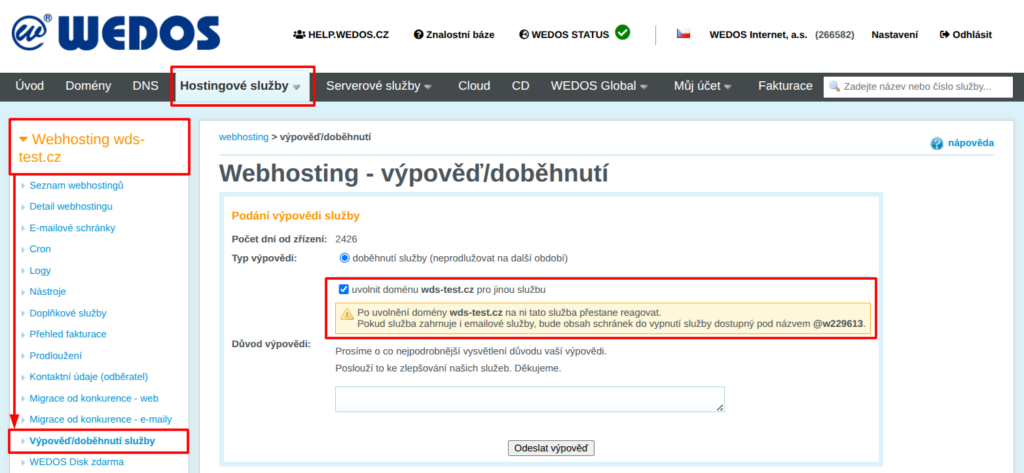
- In the left-hand menu, click on " Service Termination/Expiration."
- Select the cancellation type and check the box to release the domain for another service.
- Please state the reason for cancellation and click the " Submit Cancellation" button.
Terminate/terminate service:
Renaming the hosting account
You can use the domain name release feature by renaming the domain in cases where you don’t want to cancel the service immediately—perhaps you have another use for it, or you need more time to migrate your website and email to a new service.
If you rename the service mojedomena.tld for example, on staryweb.mojedomena.tld, you can create a new service with the original name or rename an existing service to that name (for example, a service on a test subdomain). Follow the instructions for renaming:
Removing a Web Hosting Alias
A web hosting account can have multiple domain names, which you can set up using aliases. For more information and instructions on how to remove aliases, see the guide " Web Hosting – Aliases."
Website Migration
To migrate your existing website to the new service, follow the instructions for the destination service:
- Web Hosting: The Web Hosting service does not currently support automated migrations from other VEDOS services. To migrate from WP Hosting, you can use any migration plugin. Customer support can migrate websites (but not the editing interface) from WebSite 1.0 to Web Hosting upon request.
- Hosting WP: The Hosting WP service supports migration from WordPress to Webhosting using the VEDOS migration plugin. For more information, see the guide “Hosting WP – Switching from Another Service.”
Moving emails
All VEDOS services that support email include an option for automatic mailbox migration. To ensure a successful migration, please have the following ready:
- IMAP server name: You can find it in the " Email – SMTP, POP3, IMAP" guide.
- Names and passwords of source repositories: Enter the mailboxes including the service domain. If you have removed the service name or renamed it, enter the current service name after the @ symbol, for example
schranka@stary.domena.tld, orschranka@w123456. If you have removed the Web Hosting alias, enter the mailbox name using the Web Hosting's main domain.
You can set up the automatic migration by following these steps:
- Log in to the customer administration ⧉.
- In the navigation bar, select the type of service you want to move your emails to.
- Select the target service from the list.
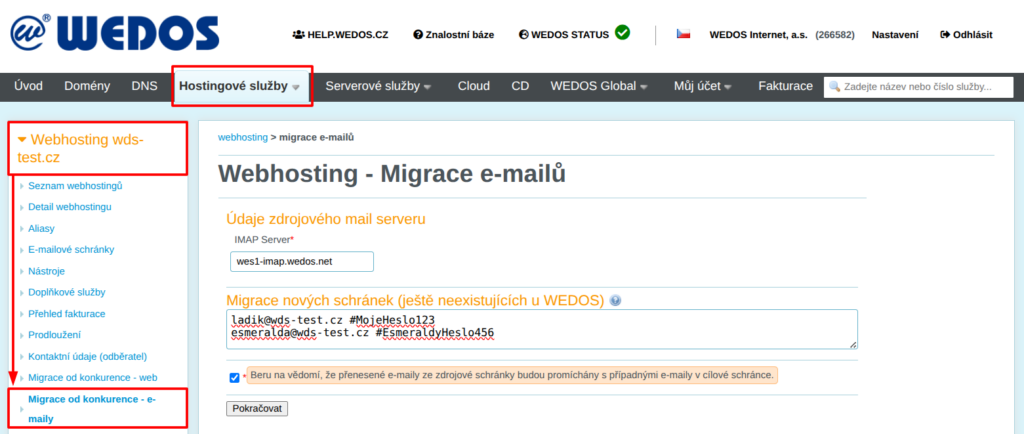
- In the left-hand menu, click on " Migration from a competitor – emails."
- Enter the IMAP server and mailbox details.
- Accept the notice regarding the behavior of migrated emails and click the Continue button.
Open the interface to automatically migrate emails to the service:
For complete instructions on migrating emails, including solutions to common problems, see the guide " Emails – Automatic Migration."
Frequently Asked Questions
We still have quite a few days left before our original service expires. How can we make the most of this time?
If you no longer need the original service that you have deactivated by changing its type, you can request that the unused portion of the remaining term be transferred to the new service. When canceling such a service, please specify the name and type of the new service. If you need to terminate the service at a later date—for example, to allow enough time to transfer your data and emails—please include that date in your message as well.
We let the service run its course, but it has expired and we can't complete the transfer of the website or emails. Could you reactivate it for a few more days?
Customer support can temporarily reactivate a hosting service for up to 5 days after it has expired. We cannot temporarily reactivate a service that has been expired for 6 days or more.
If we remove the domain from the original service to make room for the new one, how can we access the website and emails on the original service?
You won't be able to access the website itself once the domain name is removed, but the files and data on the FTP server and in the databases will remain until the service is deleted. If you want to keep the old website available—for example, on a subdomain— rename the hosting account instead of canceling it.
Mailboxes are available under the domain corresponding to the service name. So, for example, if the service name after termination is w123456, you'll be taken to your inbox schranka username schranka@w123456. This should apply to both Webmail ⧉, as well as any email client. However, no emails will be delivered to mailboxes with the old name—so don’t delay unnecessarily with the migration and, above all, with creating new mailboxes (these are created automatically during migration, and emails can be moved to them later).